Sorry, all: This blog post is well overdo. In fact any post at all is overdue at this point; suffice it to say it’s been a while. The not-so-relevant-for-this-blog reason behind this is mainly that we’re fixing the foundation drainage on our wonderful new house these days, and it takes quite a lot of time. A house built on solid rock is definitely by The Book, but it also presents some interesting challenges in that the machines can’t necessarily reach where all the digging needs to be done. Hm. Perhaps there’s a relevant lesson there after all? In any case, I’m digging and moving heavy rocks more than most, and definitely more than I’m blogging. Never slept deeper nor been in better physical shape, though! Makes the local gym feel like a lazy SPA spa.
HOWEVER: Despite my being a bit behind my usual schedule, I’m actually taking my time writing this post. A lot more than usual, in fact. Not because it’s such a deep post or that I’m tired or uninspired, or that it’s a high risk topic that demands extra care. Rather it’s because typing goes in slo-mo these days. You see, I just made a long time investment that will only be beneficial if I keep writing code (myself, not claude) in the long run.
Lo and behold: I’m transitioning into a split keyboard!
🤯
The Why Link to heading
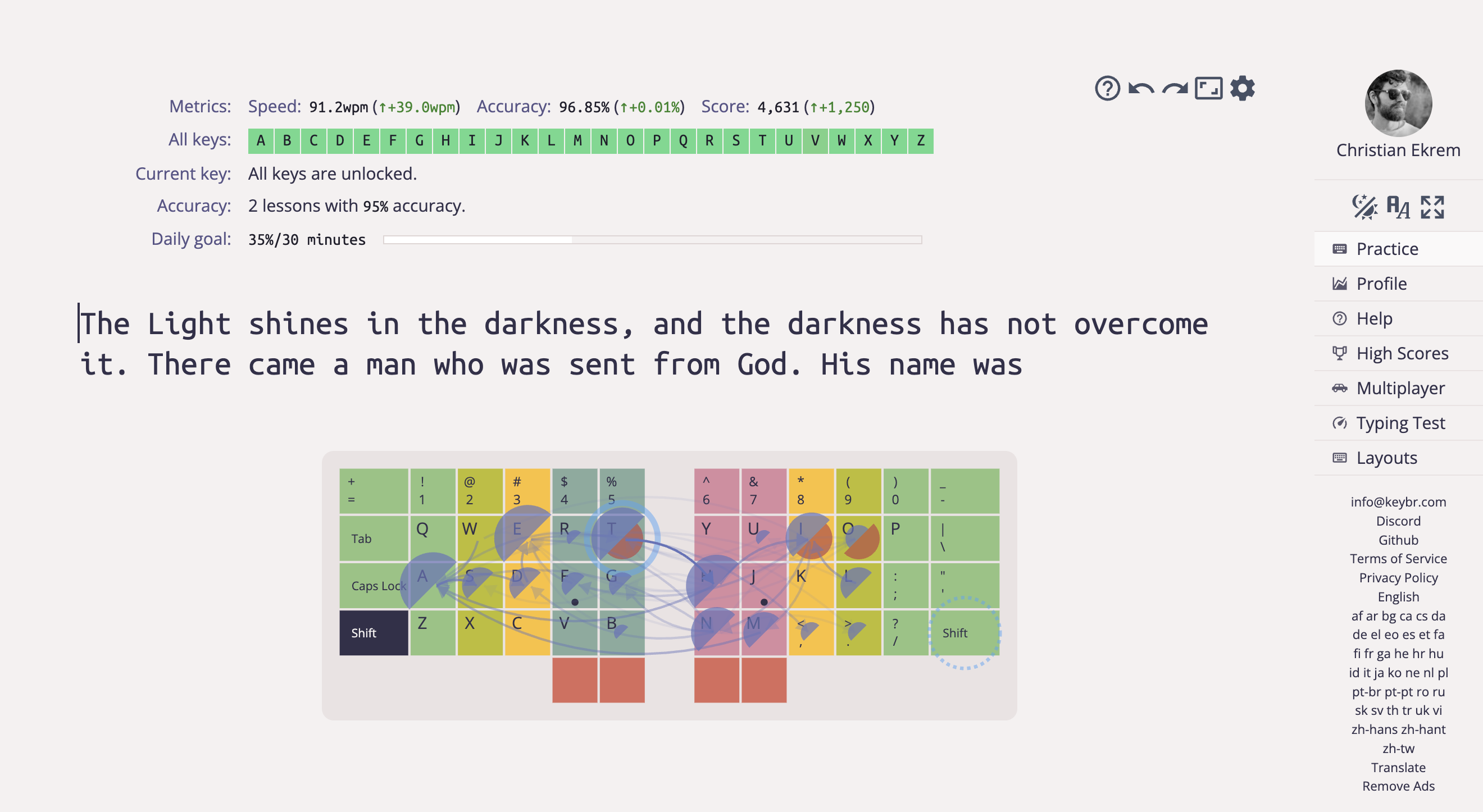
Not exactly the speed of, atm. And for code, it’s even slower. But word on the street is that it is faster and more ergonomic in the long run. Adding to that, I think it’s good for me to challenge myself to learning new craft related skills, not only mentally but also in terms of muscle memory.
The general exercise of doing things that’s painful today but great tomorrow is a healthy one in these micro-wave, instant-gratification days. Learning something, I propose, never gets old. Doubly so in the day and age of trying to push as much of our craft to agents, though that’s not the point of this post.
I’ve embarked on similar (keyboard related) endeavors three times before, and I don’t regret for a second the time and effort spent on those:
- Learning how to touch type in general (at primary school, actually, somewhere around when Red Hat 7.3 came in the mail on 4 CDs)
- Transitioning from Norwegian to English keyboard language (much more efficient in terms of symbols and coding!)
- Learning
vim, my favorite and least regretted muscle memory related exercise ever, at least within my craft
Time will tell if I find this equally rewarding, but knee deep in there’s at least that strange and vaguely familiar feeling of mastering something new. I like it! Happy developer -> better code. Right?
The What Link to heading
There are countless options among these split keyboard beasts, one more extreme than another. This is not a blog post for comparing these. But the TL;DR is I decided on the MoErgo Go60, which this blog post over here does a great job of reviewing and describing.
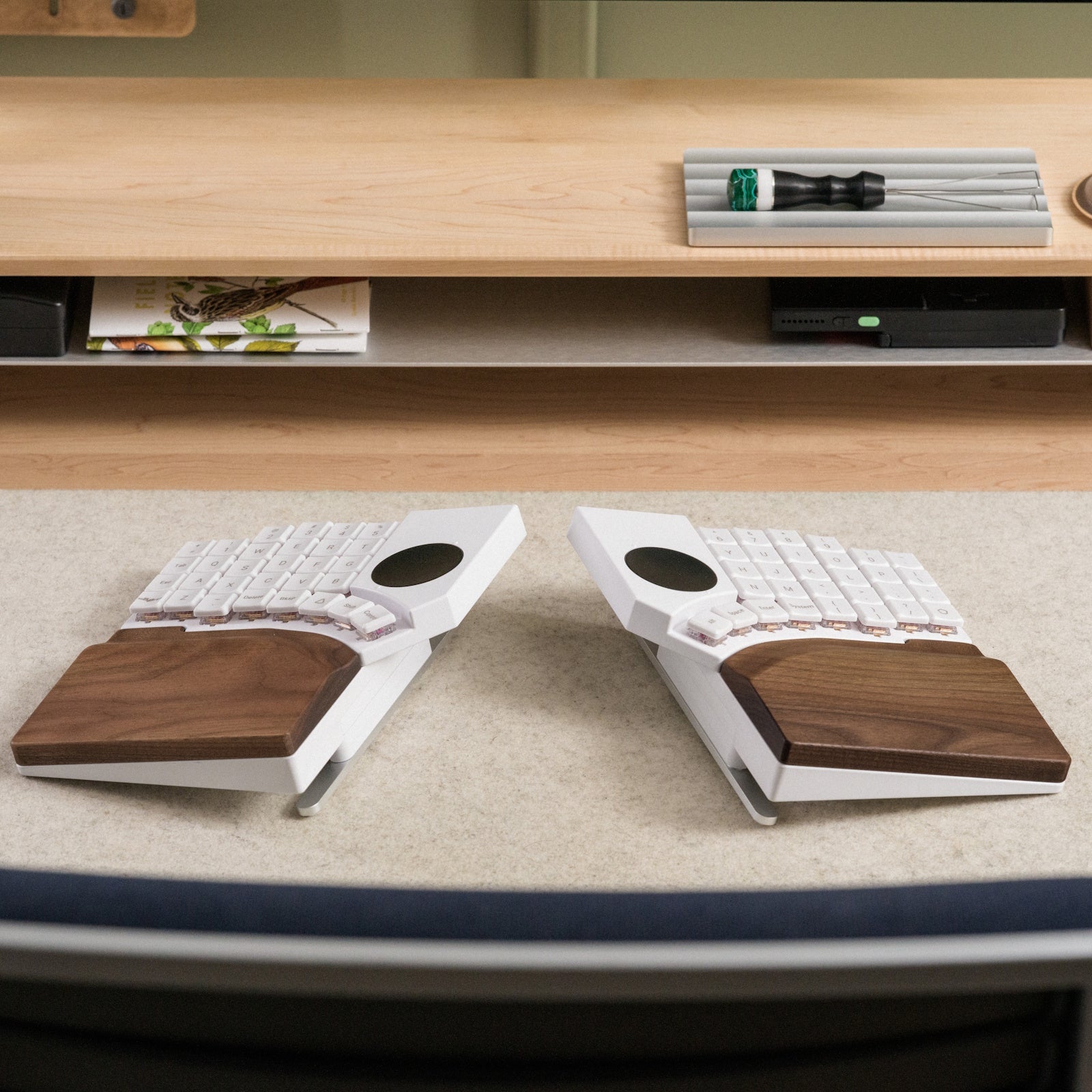
The muscle memory highlights for most split keyboard is, surprisingly enough, not mainly that it’s split in two; If you took your favorite keyboard and divided it or added some spacer in the middle I’d wager you’d be up to your normal typing speed in a matter of quite few minutes. And you’d probably get some benefit as well, for sure. But the main challenge (and advantage, in the long run) is that it features_ a columnar layout, where the keys are aligned by theirs columns (vertically), with offset on row level, while traditional keyboards do the opposite. The unfamiliar approach is hands down (pun not intended) the most ergonomical one, though decades of traditional typing makes it feel very weird at first for quite a while.
Here’s what my main layout (or layer, let’s get back to that!) looks like:
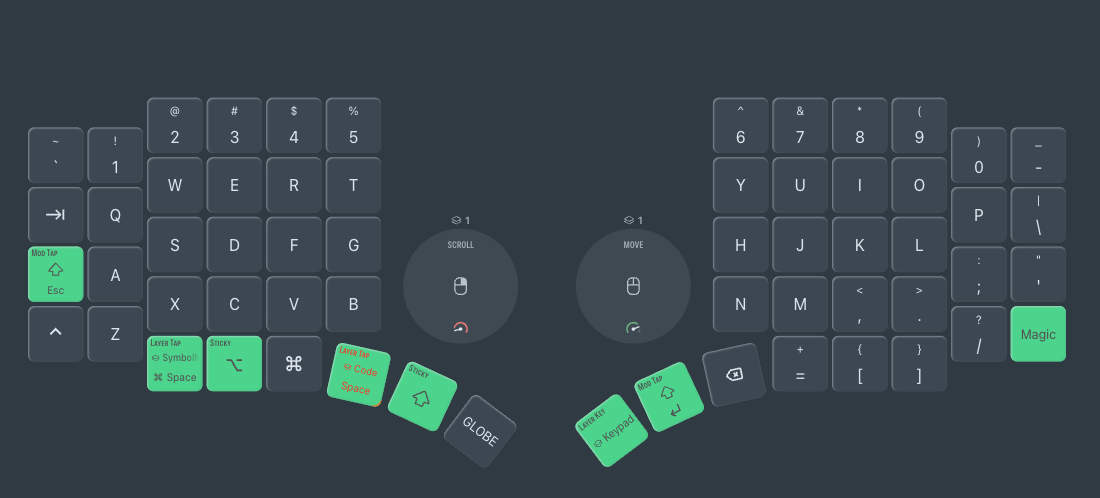
Our fingers are spaced evenly (so, no horizontal offset on rows), but have different lengths (that’s why there’s a vertical offset for some columns), so it’s not rocket science, really. But it still feels weird, one week in.
The last source of friction, pain and great success is that most split keyboards advocate a more active thumb, and less pinky stretching. No big change for the spacebar, but a very frustrating exercise for enter and backspace, both of which are now handled by my right thumb!
Beyond key placements and thumbs Link to heading
If you thought the Elm community was geeky, wait til you see what split keyboard veterans are doing beyond all the basics, though. There’s no limit to the lengths people will go to to avoid stretching fingers or moving palms… I’m still quite early in my quest, so I’m only dabbling with the most basics of key-fu:
The mod tap Link to heading
Why let one key do one thing, when it can do two? My caps lock placed key, for one, means escape, when I tap it, but shift when I hold it. When was the last time I tapped shift or held escape anyways? Takes some getting used to, but makes sense.
Sticky keys Link to heading
Though I have that aforementioned caps lock positioned shift in place, it’s even more comfortable with a “sticky shift”, a shift that you can tap once and it will be active until the next key tap. vim users will find this familiar as that’s how you use the <leader> key. So I put that next to my left hand thumb spacebar space button, hoping I some day get used to it in favor of the traditional one…
Layers Link to heading
Layers on a keyboard is hardly a new concept, after all any character can be either lower case or capitalized depending on whether you hold shift; option, alt gr (and, again shift) also enables a number of symbols, not least on the number keys. But most split keyboards let you create an arbitrary number of additional layers. To show by example, here’s what my “coding layer” looks like:
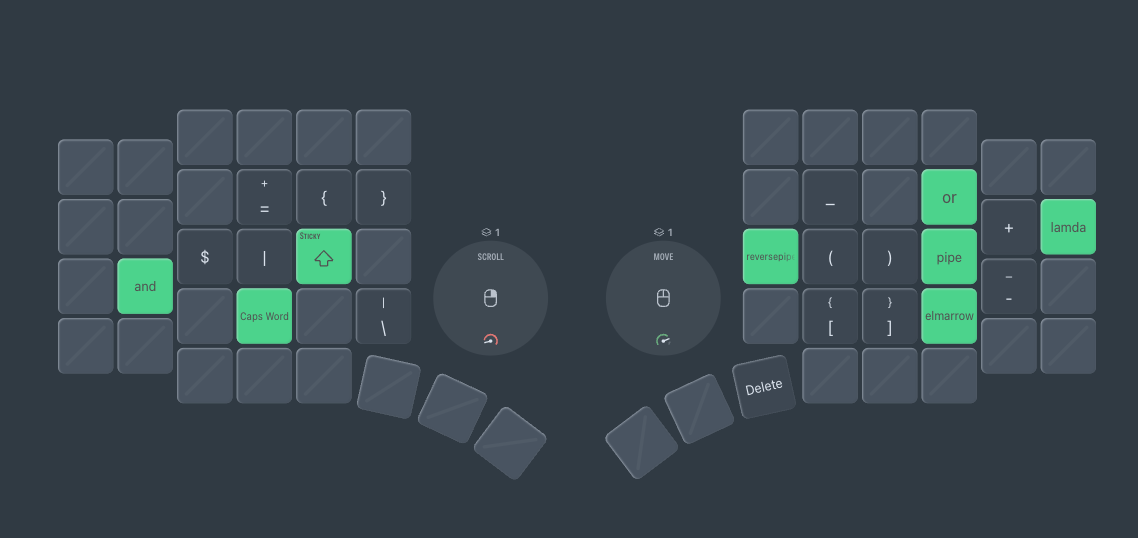
In simple terms, whenever I hold my space key, this “coding symbol layer” is active; it provides alternative and arguably easier (though less familiar, for now) ways of creating symbols that normally require stretching and or other/hassle. The MoErgo firmware supports a single key producing multiple symbols, so I have shortcuts for |>, (\_ -> and -> to name a few.
(There’s also a default symbol layer for arrow keys, numpad etc, though that’s less useful for a die hard vim user. And then there’s a layer for controlling more hardware oriented stuff like backlight, bluetooth connections etc.)
Main point: adding a layer beats complex hand stretches with multiple modifiers!
Next level: Homerow obsession Link to heading
In an ideal world, fingers should stay on the home row as much as possible (asdf + jkl; in a US qwerty layout), and the concept of mod tap can be used on these keys as well. So, you’d then use the mod tap trick on these keys, saying that homerow index finger keys (f and j) will mean shift while held down, while middle finger keys will mean ctrl, or even change the layer altogether – ymmv. And the more veteran one becomes in the land of split keyboards, the more common this approach is. For now, though, I’m not jumping on that train. I imagine it will need a lot of tweaking to eliminate timing related ambiguity when multiple keys are pressed at once (whether I meant “floor” or “Lor”, given that f can mean “f” or shift depending on the timing of the f release…).
I’m ish one week in at the time of typing, still slow, and still in good spirit; trying not to change my setup too often.
I’ll keep you posted on my progress, especially when all that digging is done.
BTW: You think this post is a bit on the short side? If only you knew how long it took me to type it… :D